How to Create a Content Aware Fill Photoshop Strategy
Content aware fill photoshop is one of the most powerful tools for photo editing. Yet many designers use it without a clear strategy. As a result, they get inconsistent results, wasted time, and visible editing flaws. If you want professional-level retouching, you need more than just clicking “Fill.” You need a system.
In this guide, you’ll learn how to build a smart content aware fill photoshop workflow that delivers clean, natural results every time. Whether you remove objects, fix backgrounds, or clean product photos, this strategy will help you work faster and more accurately.
Understanding Content Aware Fill in Adobe Photoshop
The content aware fill photoshop feature uses AI-based sampling to replace selected areas with pixels from surrounding regions. Instead of manually cloning or patching, Photoshop analyzes texture, lighting, and color. Then it generates realistic replacements.
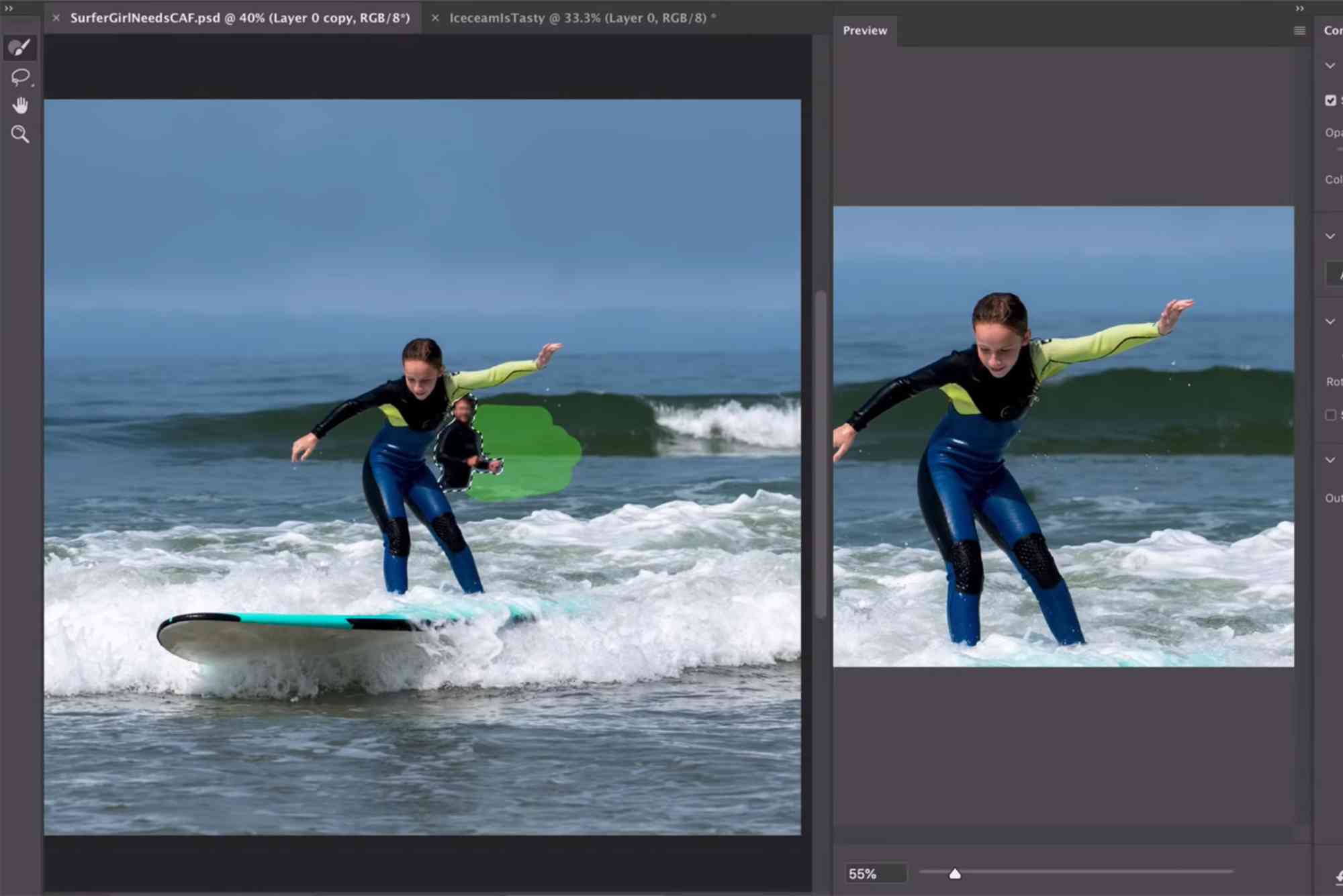
In modern versions of Adobe Photoshop, the Content-Aware Fill workspace gives you more control. You can adjust sampling areas, rotation adaptation, color adaptation, and output settings. This control is essential if you want consistent professional results.
However, even the best AI tool needs guidance. Without preparation, content aware fill photoshop may create blurry textures, repeated patterns, or distorted edges.
Why You Need a Content Aware Fill Photoshop Strategy
Many beginners rely on trial and error. They select an object, press delete, and hope for magic. Sometimes it works. Often it does not.
A clear strategy helps you:
Improve accuracy
Reduce manual corrections
Maintain texture realism
Speed up your workflow
Deliver consistent edits across projects
If you work on client images, consistency is critical. A structured content aware fill photoshop approach ensures every image meets professional standards.
Prepare Your Image Before Using Content Aware Fill
Preparation determines 50% of your success. Never skip this stage.
Clean Selections Make Clean Results
Use the Lasso Tool or Pen Tool for precise selection. Avoid rough edges. Expand your selection by 2–5 pixels. This prevents visible seams.
Feathering by 1 pixel can also help blend edges smoothly.
Duplicate Your Layer First
Always work non-destructively. Duplicate the background layer before applying content aware fill photoshop. This allows easy revisions later.
You can also output to a new layer inside the Content-Aware Fill workspace. This gives you full control.
Remove Distractions in Stages
If the object is large, remove it in sections. Smaller selections give the AI better context. Large, complex areas often confuse the algorithm.
This staged approach makes content aware fill photoshop more predictable.
Control the Sampling Area
The biggest mistake users make is ignoring sampling control.
Inside the Content-Aware Fill workspace, Photoshop shows a green overlay. This indicates where pixels are sampled from.
Refine the Green Sampling Overlay
Remove areas with mismatched lighting or patterns. Add areas with clean textures.
For example, if removing a person from a beach scene, sample only sand textures. Avoid sampling the sky or water.
The more precise your sampling, the better content aware fill photoshop performs.
Use Rotation and Scale Adaptation Wisely
Rotation adaptation helps when textures vary in angle. Scale adaptation works for repeating patterns like bricks or tiles.
Turn these on when needed. However, avoid enabling all options blindly. Test and compare results.
Blend with Complementary Tools
Even with a good strategy, content aware fill photoshop may need refinement.
After applying the fill, zoom to 100%. Check for repeated patterns, soft patches, or color shifts.
Use the Clone Stamp for Fine Corrections
The Clone Stamp Tool helps refine small imperfections. Use a soft brush and low opacity.
Blend edges gently rather than copying large areas.
Patch Tool for Texture Consistency
The Patch Tool works well when content aware fill photoshop struggles with complex textures.
You can combine both methods for seamless results.
Professional editors rarely rely on one tool alone. They combine AI with manual control.
Match Lighting and Color
AI sometimes fixes texture but ignores subtle lighting gradients.
Adjust with Curves or Levels
After applying content aware fill photoshop, use adjustment layers to correct brightness differences.
Mask adjustments only to the edited area.
Add Noise for Realism
Sometimes filled areas look too smooth. Add subtle noise to match the original grain.
This step is especially important in portrait and product photography.
Building a Repeatable Workflow
A strategy becomes powerful when it is repeatable.
Here’s how to create a reliable system:
Start with clean selection
Refine sampling area
Apply content aware fill photoshop to new layer
Inspect at 100% zoom
Refine with clone or patch tools
Match lighting and add grain
When you follow this sequence, results become predictable.
Over time, you’ll instinctively know when content aware fill photoshop will work perfectly and when manual work is better.
Advanced Techniques for Complex Scenes
Some images are more challenging. Busy backgrounds, detailed architecture, and overlapping objects require advanced planning.
Removing Large Objects from Crowded Scenes
Break the object into logical segments. Remove background parts first. Then rebuild foreground elements.
This layered approach prevents distortion.
Working with Patterns
Brick walls, tiles, and fabrics can confuse content aware fill photoshop.
In these cases, manually create pattern consistency first. Then use fill for smaller gaps.
Using Multiple Fills
Instead of one large fill, apply several smaller fills. Each pass improves realism.
Patience produces cleaner outcomes.
Common Mistakes to Avoid
Many designers misuse content aware fill photoshop because they rush.
Avoid selecting too tightly around objects. Avoid sampling from inconsistent lighting zones. Avoid ignoring edge cleanup.
Also, never assume the first result is final. Professional editing requires inspection and refinement.
If you are serious about growing your editing skills, consider getting SEO Expert Help to improve not only your visuals but also your content strategy at A strong visual strategy and SEO plan work best together.
Integrating Content Aware Fill into a Broader Creative Workflow
Content editing is not isolated. It connects with branding, marketing, and storytelling.
For example, when creating marketing visuals, clean backgrounds improve message clarity. High-quality images increase engagement.
Industry leaders like Neil Patel on Content Marketing explain how strong visuals support traffic growth and brand authority at.
When your images look professional, your overall content performance improves.
That’s why mastering content aware fill photoshop is not just a design skill. It’s a marketing asset.
Real-World Use Cases
Photographers use content aware fill photoshop to remove unwanted people from landscapes.
Ecommerce brands use it to clean product shots.
Real estate editors remove power lines or trash bins from property images.
Social media creators fix distractions before publishing.
In each case, the strategy remains the same. Prepare carefully. Control sampling. Refine manually.
Consistency builds quality.
FAQ Section
What is content aware fill photoshop used for?
Content aware fill photoshop is used to remove unwanted objects, repair damaged areas, and clean backgrounds. It replaces selected areas with pixels that match surrounding textures and lighting.
Why does content aware fill sometimes look blurry?
Blurriness occurs when the sampling area includes mixed textures or incorrect lighting. Refine the sampling overlay and work in smaller sections for sharper results.
How do I improve content aware fill results?
Improve results by making precise selections, controlling sampling areas, applying the fill on a new layer, and refining with clone or patch tools.
Is content aware fill better than clone stamp?
Content aware fill photoshop is faster for large areas. Clone stamp offers precise control for fine details. Professionals combine both tools for best results.
Can content aware fill work on complex backgrounds?
Yes, but complex backgrounds require careful sampling and multiple passes. Breaking the edit into stages improves realism.
Build Your Strategy, Not Just Your Edits
Content aware fill photoshop is powerful, but power without strategy leads to inconsistency.
When you prepare properly, control sampling, refine manually, and adjust lighting, your results become seamless.
Professional editing is about control and precision. The more structured your workflow, the better your outcomes.
Start applying this content aware fill photoshop strategy today. Practice on different images. Experiment with sampling adjustments. Refine with complementary tools.
Over time, you will not just remove objects. You will create flawless visuals that strengthen your creative and marketing impact.
If you want to elevate your digital presence alongside your design skills, combine strong visuals with expert SEO strategy. That combination drives real growth.